
Browser extensions are powerful tools that can help you stay organised, save time, and work more efficiently. These useful extensions improve your browser’s functionality, making your online experience more productive and efficient. In this guide, we’ll show you how to add extensions to your browser (specifically Chrome) and spotlight some essential tools you can start using right away.
How to Add Extensions on Chrome
Adding extensions to Chrome is a simple process. Just follow these steps:
1. Open the Chrome Browser
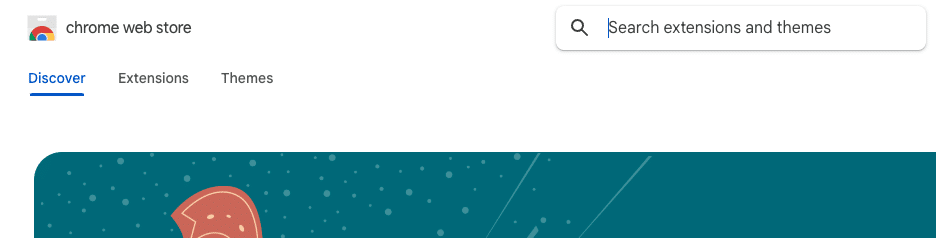
Go to the Chrome Web Store.
2. Search for an Extension
Use the search bar to find the extension you want by name (e.g., “Grammarly”).
3. Click on the Extension
From the search results, click on the extension you want to learn more about.
4. Add to Chrome
Click the blue Add to Chrome button. A pop-up will appear asking for confirmation.
5. Grant Permissions
Review the permissions requested by the extension and click Add Extension to confirm.
6. Access Your Extensions
Once installed, the extension’s icon will appear in the browser toolbar. If you don’t see it, click the puzzle piece icon (Extensions) and pin it for easy access.

Top Extensions to Boost Your Productivity
Now that you know how to add extensions, here are the must-have tools to maximise your efficiency and streamline your daily tasks.
1. Grammarly
Purpose: Writing Assistance
Whether you’re composing emails, blog posts, or social media updates, Grammarly ensures your writing is clear, concise, and error-free. It provides grammar and spelling checks and even offers tone suggestions.
Why You’ll Like It: Save time proofreading and make a great impression with polished content.
2. Keeper Password Manager
Purpose: Password Security
Managing passwords can be a hassle, but Keeper makes it a breeze. It securely stores your login credentials and auto-fills them when needed, so you never have to worry about remembering dozens of passwords.
Why You’ll Like It: Enhance online security and simplify logins without any hassle.
3. Clockify
Purpose: Time Tracking
Ideal for professionals who need to track their hours, Clockify integrates with tools like Trello and Slack to monitor time spent on tasks effortlessly.
Why You’ll Like It: Keep track of your productivity and ensure every minute is accounted for.
4. Loom
Purpose: Video Recording
Loom makes screen recording effortless, allowing you to create quick tutorials, presentations, or feedback videos with just a few clicks.
Why You’ll Like It: Say more in less time by replacing long emails with engaging video content.
5. Tab Manager Plus
Purpose: Tab Organisation
If you’re someone who keeps dozens of tabs open, Tab Manager Plus is a lifesaver. It helps you locate, search, and manage your tabs quickly.
Why You’ll Like It: Keep your browser neat and find what you need in seconds.
A Quick Word of Advice: Less is More
While these extensions are incredibly useful, it’s important not to overdo it. Too many extensions can slow down your browser and clutter your toolbar. Focus on the ones that meet your specific needs and remove any you no longer use.
How to Remove or Disable a Chrome Extension
If you’d rather turn an extension off temporarily than remove it entirely, or want to clean up your toolbar:
- Click the puzzle piece icon in the top-right of Chrome to open your extensions list.
- Click the three dots next to the extension you want to manage.
- Select “Remove from Chrome” to uninstall it completely, or go to
chrome://extensionsto toggle individual extensions on and off without removing them. - Confirm the removal if prompted.
Regularly reviewing and removing extensions you no longer use is good practice, both for browser performance and for reducing the number of third-party tools that have access to your data.
Why Can’t I Add Extensions to Chrome?
If you’ve followed the steps above and the ‘Add to Chrome’ button isn’t working, or extensions disappear after installing, it’s usually one of these:
Your organisation has disabled extension installs: In a managed business environment, IT administrators can block users from installing any extensions, or restrict them to an approved list, via Chrome’s admin policies. If you see a message like ‘This extension is blocked by your administrator,’ this is almost always the cause, and only your IT team can change it.
You’re not signed into Chrome, or you’re in Incognito mode: Some extensions won’t install, or won’t run, without a signed-in Chrome profile and most are disabled by default in Incognito windows unless you’ve explicitly allowed them.
The extension has been removed from the Chrome Web Store: Google periodically removes extensions that violate its policies or pose a security risk. If a specific extension won’t install, search for it directly, it may no longer be available.
Chrome is out of date: An outdated browser version can cause compatibility issues with newer extensions. Check for updates under Settings > About Chrome.
A conflicting extension or corrupted profile: Occasionally another extension interferes with installation, or your Chrome profile has become corrupted. Creating a new Chrome profile or removing recently added extensions can help isolate the issue.