


Most people think Excel cells can only hold one line of text. In reality, you can write multiple paragraphs, bullet points, and well structured notes inside a single cell. This is extremely useful for meeting notes, task lists, addresses, and explanations.
Once you know the shortcut, it becomes a habit you will use every day.
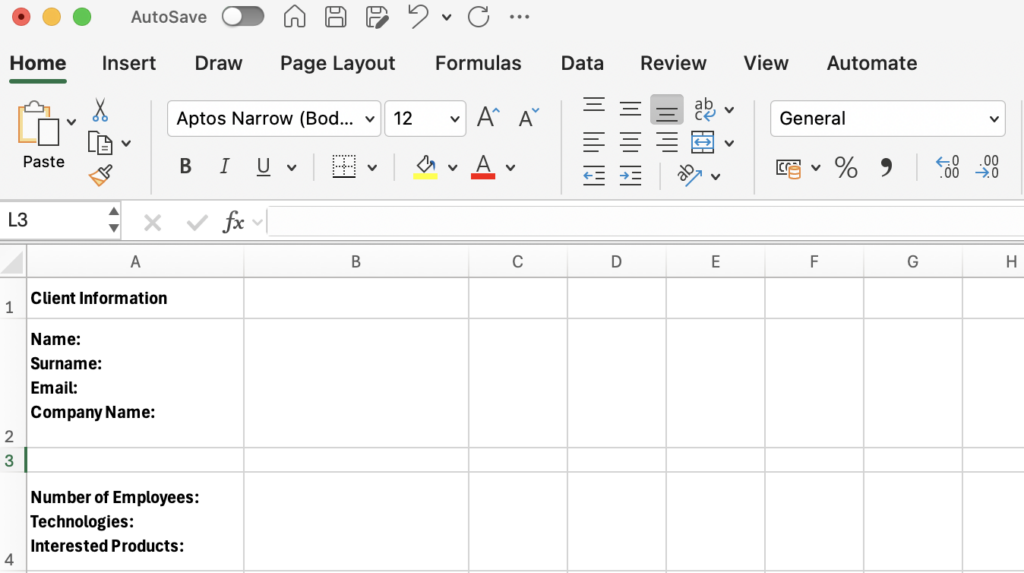
How to Add a New Line Inside a Cell on Mac
While typing in a cell in Excel on macOS, press:
Option + Enter
This moves your cursor to a new line within the same cell instead of jumping to the next cell.
You can now write paragraphs or bullet style content neatly inside one cell.
How to Add a New Line Inside a Cell on Mac
While typing in a cell in Excel on Windows, press:
Alt + Enter
This creates a line break inside the cell and allows you to continue writing on a new line without leaving the cell.
Recommendations for Better Formatting
To make your content look clean and organized, a few small settings help a lot.
First, turn on Wrap Text. This allows Excel to display all lines properly instead of cutting them off. You can find this in the Home tab.
Second, widen the cell so the text is easier to read. You can do this by dragging the column boundary from the top bar with column letters or adjusting the row height from the left side row numbers.
Third, keep bullet points short. Excel cells work best when each line is concise and scannable.
This simple shortcut turns Excel into a lightweight documentation tool. Instead of spreading notes across multiple cells or using external tools, you can keep structured information exactly where the data lives.