

Have you ever opened the Outlook app on your phone, expecting to see your emails, but instead seeing the message “Nothing left to read”? It’s a common problem that can be very annoying, especially when you need to communicate quickly. The good news is that there are a few simple steps you can take to solve this issue. In this guide, we’ll focus solely on the Outlook mobile app and how to get your emails back where they belong.
Why Is My Outlook Mobile App Not Displaying Emails Correctly?
Before jumping to fixes, it helps to understand what’s typically behind email display problems in the Outlook mobile app. The most common causes include the list below:
Why Outlook Stops Responding
Outlook can be unresponsive in multiple ways. If it freezes, shows ‘Not Responding’ or gets stuck on ‘Processing’, you may rightly be frustrated. Luckily, these scenarios can easily be fixed from the office and may not need the assistance from IT:
Too many tasks running at once: Outlook could be performing tasks such as processing a large batch of emails, syncing or archiving. Before assuming something is wrong, check the status bar at the bottom of the screen for a progress message.
Oversized mailbox or data files: .pst or .ost files that grow larger than 50 GB may cause crashes or freeze Outlook. The larger the files are, the worse the performance Outlook will have.
Corrupted data files: Outlook may not load or respond if .pst or .ost files are damaged.
Problematic add-ins: Outdated or incompatible third-party add-ins are one of the most frequent reasons for Outlook to freeze.
Outdated Outlook or Windows: Certain bugs that may cause instability are likely to be present in older versions. This happens especially after a Windows update.
Antivirus conflicts: Some firewall or antivirus software may block parts of Outlook causing the application to be unresponsive.
Low system resources: Lack of storage or RAM may cause Outlook to be unable to perform tasks in the background.
Common Outlook Error Messages and What They Mean
If you’re seeing a specific error, here’s what the most common ones indicate and how to address them:
| Error Message | What to Do |
| Outlook is not responding | Check status bar for background tasks. If none, try Safe Mode to rule out add-ins. Run repair tools if the issue persists. |
| Stuck on ‘Processing’ | Close Outlook, start in Safe Mode (outlook.exe /safe), close again, then reopen normally. |
| Your mail server certificate is invalid | This usually points to a server-side configuration issue. Contact your IT team — this is not something to resolve by accepting the certificate without verification. |
| Cannot start Microsoft Outlook. Cannot open the Outlook window | Often caused by a corrupted navigation pane or profile. Start in Safe Mode first; if that works, reset the navigation pane or create a new profile. |
| Need password / Authentication required | Re-enter your credentials. If using Microsoft 365, check whether Multi-Factor Authentication has been triggered or your password has expired. |
8 Ways to Fix Email Display Issues On the Outlook App
There are some simple ways to fix the email display issues on the Outlook app, from checking if your internet connection is secure and quick, to clearing the cache and reinstalling the app:
1. Check Your Internet Connection
It might seem obvious, but ensuring you have a stable internet connection is the first step.
Switch Networks: If you’re connected to Wi-Fi, try switching to mobile data, or vice versa. Network issues can sometimes prevent emails from syncing.
Restart Your Connection: Turn on Airplane Mode for a few seconds and then turn it off to reset your network connection.
Disable VPNs: If you’re using a VPN, it might interfere with email syncing. Try disabling it temporarily to see if that resolves the issue.
2. Refresh the Outlook App
Sometimes, all it takes is a quick refresh to get things moving.
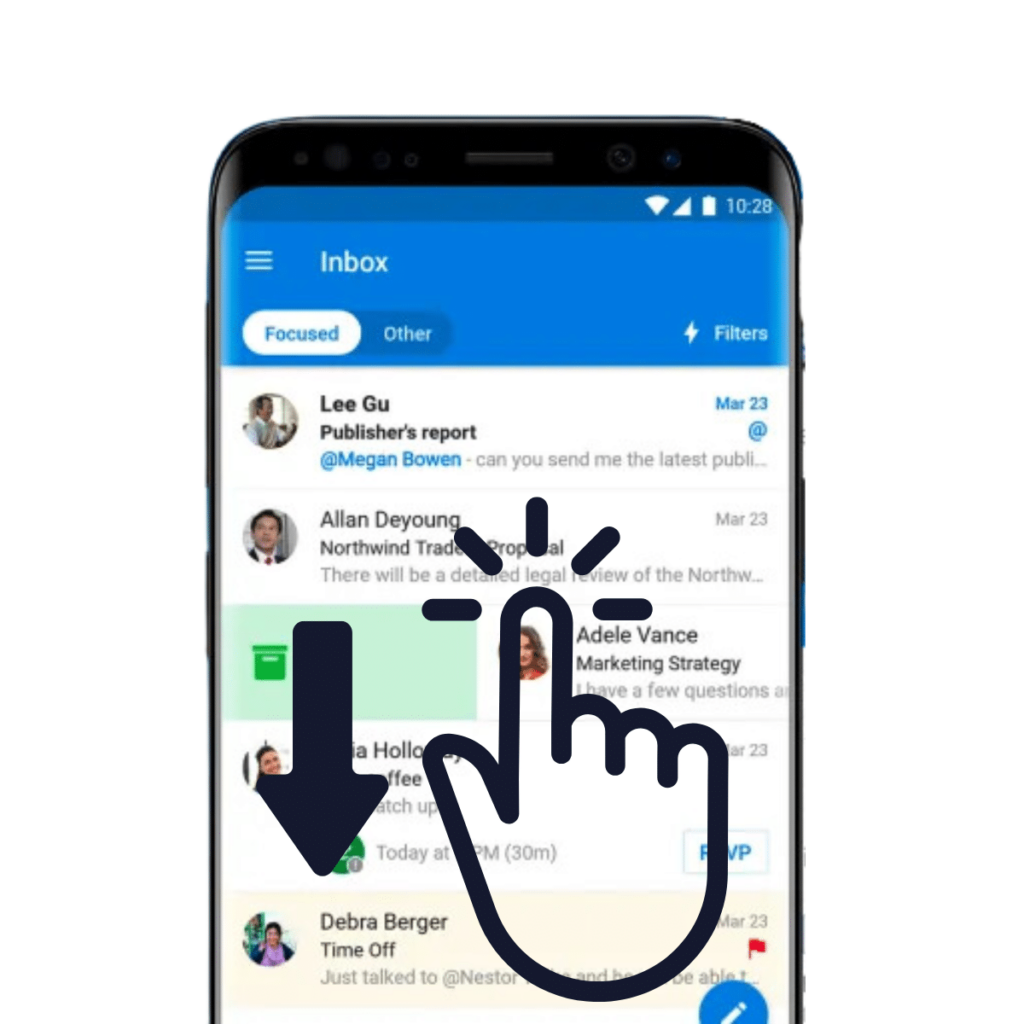
Pull to Refresh: Open the Outlook app and swipe down from the top of your inbox. This action forces the app to sync and fetch new emails.
Close and Reopen the App: Fully close the Outlook app and then open it again. This can clear minor glitches that might be affecting email delivery.
3. Clear Cache and Data (Android Users)
If you’re using an Android device, clearing the app’s cache can help resolve issues.
- Go to Settings > Apps > Outlook.
- Tap on Storage. Select Clear Cache.
- (If clearing the cache doesn’t work): Follow the same steps but tap Clear Data.
- Note: Clearing data will reset the app, and you’ll need to sign in again.
4. Reinstall the Outlook App
Reinstalling can fix deeper issues that a simple update might not resolve.
- Uninstall the App and reinstall the app.
- Go to the Google Play Store or App Store, search for Microsoft Outlook, and reinstall it.
- Sign In Again and open the app and sign in with your email account details.
5. Check Email Sync Settings
Make sure the app is set up to sync your emails.
- Access Account Settings:
- Open the Outlook app. Tap the menu icon (three horizontal lines) in the top-left corner.
- Scroll down to Settings. Go to General and select Accounts, then choose the email account where emails aren’t appearing in the app.
- Go to the bottom and tap Reset Account to resolve any sync issues.
6. Turn Off Focused Inbox
Outlook’s Focused Inbox filters your emails, which might cause some messages to be hidden.
- Disable Focused Inbox:
- In the Outlook app, go to Settings.
- Scroll down and tap Email. From there, toggle off Focused Inbox.
With this feature disabled, all your emails will appear in a single inbox, making it easier to find missing messages.
7. Re-adding Your Account
- Open the Outlook app on your mobile device. Tap the three horizontal lines in the top-left corner of the screen. Scroll down and select Settings.
- In the General section, tap Accounts and tap on the account you want to remove.
- Scroll down, tap Remove Account, and confirm the removal.
- Return to the main Accounts section, then tap Add Account to re-add your account to the app.
8. Seek Further Assistance
If none of the above steps work, it might be time to get additional help.
- Contact Microsoft Support: Visit the Microsoft Support page for more options.
- Consult Your IT Department: If you’re using a work or school account, your IT team might have specific insights or restrictions affecting your account.
Experiencing missing emails in Outlook can be frustrating, but most issues are easily fixed with a few tweaks. By checking your internet connection, updating the app, and adjusting settings, you can usually resolve the problem quickly. Remember, keeping your apps updated and regularly checking settings can prevent many common issues.
Need IT Help With Outlook App?
Lucidica provides IT support for businesses across London and the UK. If Outlook issues are affecting your team’s productivity, our helpdesk can diagnose and resolve them remotely or on-site. Contact us today here.